Evolution™ comparative rating - Applied Systems Workstation Configuration
After you have installed the Applied
Integration Setup files to your network folder, workstation
variables will need to be set. This is a
one-time task. You can also use the steps below to
verify that your workstation is ready to integrate with Applied.
You must already have Capital Software's Evolution™
and the Applied Integration files installed
on your network. Our Client Install should have been run on each workstation.
If you do not have Evolution™ installed, please call 517-324-9100 or email
Customer Service to get your
copy.
If you
have not run our Client Install on each workstation,
review our setup instructions.
If you are not sure
if TAM integration has been installed, check your network
for these two
files: \Capital\autam.exe
and \Capital\hotam.exe
If you need to install Applied local integration Download the Applied
integration setup file.
Vista & Win7 Workstations use these Setup Instructions.
Windows 98, 2000 and XP Workstations
To Configure A Windows 98, 2000 and XP Workstation for Applied Integration to EVOLUTION:
In Windows, Click Start and open Control Panel
In Control Panel, open System Properties
In System Properties, click the "Advanced" tab 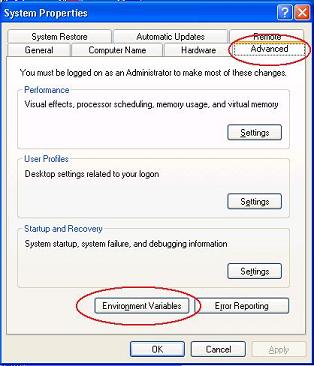
On advanced tab, click "Environmental
Variables"
In the bottom window "System
Variables" scroll down and look for RA (Auto) and RH (Home and
Fire).
For example, if you have Capital
installed on your F: drive, select F:\Capital.
If you are not sure, ask your network administrator. If
these are listed properly, your workstation is already set up.)
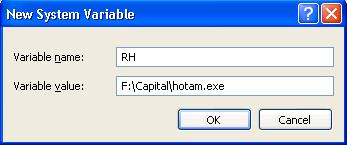
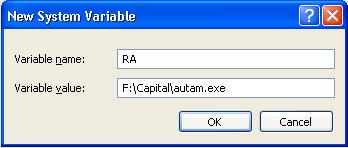
Click OK to close all screens and reboot
the workstation, and you are setup.
|
|
![[Site Map]](http://www.capitalrating.com/images/cr2006/banner.jpg)